Skip to content
SUMMER SALES DISCOUNTS
SAVE UP TO 70% ON MICROSOFT DEALS
USE CODE 'PRO77' & SAVE MORE

News

Sub title page content

How to Install Microsoft Office Application: An Expert Guide

Step 1: To install a new standalone Microsoft Application, such as Word or Project, first make sure you don’t have any old copies installed on your computer. If you do, remove these first as they may otherwise affect the installation for your new version.

  • Click on the Windows Start button and select Control Panel.
  • Select Programs and Features and then look for the Office product you’re trying to install in the list of programs under Uninstall or change a program.
  • If you see an old copy in the list, then click Uninstall and follow the instructions. Alternatively, see our guide about how to uninstall Office software.

Step 2: Open your web browser and go to: https://setup.office.com/downloadoffice/ and login with your Microsoft Account

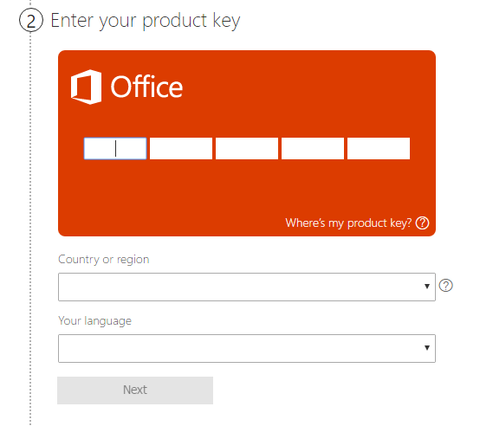
Step 3: You’ll see a page asking you to enter the Product Key for the application you want to install. Enter your product key, country or region, and language., then click Next.

  • Note: make sure you use the same product key you were given with your purchase. Product keys can only usually be used with one copy of a software program on one computer. If you don’t have a valid key, you’ll first need to get one by purchasing the Office app you want to install
    Step 4: Follow the download and installation instructions then click Run when you see the prompt to open the installer

Note: you may be asked to close some programs if you have any Office apps active while trying to run the installation

Step 5: You’ll get another notification once the installation is complete, and then you’re all good to go! Just close the installer and open up your new Office application. For help on how to find your Office applications, see our guide here

System Requirements for Microsoft Office Suite

Before buying any software product, it’s important to make sure it can work on your computer. The main things to watch out for are your computer’s:

  • Processor
  • Memory
  • Hard disk
  • Display resolution
  • Operating system

System Requirements for Office 2010

Operating System compatibility:

32-bit Office 2010 is supported by:

  • Windows 8 (32-bit and 64-bit)
  • Windows Server 2012 (64-bit)
  • Windows 7 (32-bit and 64-bit)
  • Windows Server 2008 R2 (64-bit)
  • Windows Server 2008 (32-bit and 64-bit)
  • Windows Vista with Service Pack 1 (SP1) (32-bit and 64-bit)
  • Windows Server 2003 Service Pack 2 (SP2) with MSXML 6.0 (32-bit and 64-bit)
  • Windows XP with Service Pack 3 (SP3) (32-bit)
  • Terminal Server
  • Windows on Windows (WOW) allows the installation of 32-bit versions of Office 2010 on a 64-bit operating system (excluding Windows Server 2003, 64-bit and Windows XP, 64-bit)

64-bit Office 2010 is supported by:

  • Windows 8 (64-bit)
  • Windows Server 2012 (64-bit)
  • Windows 7 (64-bit)
  • Windows Server 2008 R2 (64-bit)
  • Windows Server 2008 (64-bit)
  • Windows Vista with Service Pack 1 (SP1) (64-bit)

System Requirements for Office 2013

Operating System compatibility:

32-bit Office 2013 is supported by:

  • Windows 10 (32-bit or 64-bit)
  • Windows 8.1 (32-bit or 64-bit)
  • Windows 8 (32-bit or 64-bit)
  • Windows Server 2012 R2 (64-bit)
  • Windows Server 2012 (64-bit)
  • Windows 7 (32-bit or 64-bit)
  • Windows Server 2008 R2 (64-bit)

64-bit Office 2013 is supported by:

  • Windows 10 (64-bit)
  • Windows 8.1 (64-bit)
  • Windows 8 (64-bit)
  • Windows Server 2012 R2 (64-bit)
  • Windows Server 2012 (64-bit)
  • Windows 7 (64-bit)
  • Windows Server 2008 R2 (64-bit)

System Requirements for Office 2016

Operating System compatibility:

32-bit Office 2016 is supported by:

  • Windows 10 (32-bit or 64-bit)
  • Windows 10 Server (32-bit or 64-bit)
  • Windows 8.1 (32-bit or 64-bit)
  • Windows 8 (32-bit or 64-bit)
  • Windows Server 2012 R2 (64-bit)
  • Windows Server 2012 (64-bit)
  • Windows 7 with Service Pack 1 (SP1) (32-bit or 64-bit)
  • Windows Server 2008 R2 (64-bit)

64-bit Office 2016 is supported by:

  • Windows 10 (64-bit)
  • Windows 10 Server (64-bit)
  • Windows 8.1 (64-bit)
  • Windows 8 (64-bit)
  • Windows Server 2012 R2 (64-bit)
  • Windows Server 2012 (64-bit)
  • Windows 7 with Service Pack 1 (SP1) (64-bit)
  • Windows Server 2008 R2 (64-bit)

System Requirements for Office 2019

Operating System compatibility:

32-bit Office 2019 is supported by:

  • Windows 10 (32-bit or 64-bit)
  • Windows 10 Server (32-bit or 64-bit)

64-bit Office 2019 is supported by:

  • Windows 10 (64-bit)
  • Windows 10 Server (64-bit)

If you are installing office 2019, it is worthy to take note of the following.

  1. Office 2019 doesn’t support Windows 7. 8 and 8.1 operating systems. It’s only compatible with the latest version of OS; Windows 10.
  2. Office 2019 cannot be installed alongside Office 2016.

If you’re looking for a software company you can trust for its integrity and honest business practices, look no further than Metasoft.
We are a Microsoft Certified Partner and a BBB Accredited Business that cares about bringing our customers a reliable, satisfying experience on the software products they need.We will be with you before, during, and after all the sales.

That’s our 360 Degree Metasoft Guarantee. So, what are you waiting for? Call us Today

Continue Reading
How to Upgrade Your Office 2019

Whether it’s for home or work, there will come a time when you will have to upgrade your Office. There are 2 types of office products; Office 365 Subscription and non-subscription such as the Word application or the Office Home & Business. Your upgrade will be different depending on which product you have.

Upgrade your Office using different Methods

Continue Reading
How to Install Office 2016 and 2013 for Mac

Microsoft Office is a Microsoft product family that helps customers with tedious personal and office related work. As time goes by, the roaster of applications offered in the Office suite grew and expanded, as new editions got introduced and became available, high-end editions started to offer more and more while the more affordable versions stuck to the basics. 

 Because Microsoft shares code in-between platforms, Office 2016 and Office 2013 might be older versions of the Office suite, however, they are still solid options for getting the job done.

One thing in every version and on every platform is the same though; you need to go through a process to download and install your applications properly, which can become quite confusing with so many editions being offered along with the various payment methods, the services included and the many applications you need to know how to install properly. 

 Depending on your Office product, follow our guide to download and install Office 2016 and 2013 for Mac programs properly without running into any errors that might require precious time and effort to troubleshoot.

Continue Reading
How to Install Office on a Windows PC Using My Online Microsoft Account

You can install Microsoft Office 2013, 2016 or 2019 directly through your Microsoft account online. 

All you need to do is sign in to your Microsoft account on the Microsoft or Microsoft Office websites and follow the instructions.

Note: Make sure you sign in with the account you want to be associated with the purchase you made for your Microsoft Office product. Each Office purchase comes with a unique product key that can only be used once on one computer.

Continue Reading
How to Install Microsoft Project 2019, 2016, and 2013

How to Install Microsoft Project 2019, 2016, and 2013

If you want to know how to install Project Professional, you’re at the right place. In this guide, you’ll get a brief explanation of what you need to have before the installation process. Then we will give you specific instructions in an easy to follow structure. 

First things first, you need to make sure that your PC meets the system requirements. Listed here are all of the Project Online subscription versions as well as non-subscription versions for 2019, 2016, and 2013. If you happen to have Project 2010 or 2007, you will need to follow the additional steps that you can find at the end of this article. 

Project Online Professional/Project Online Premium

In order to install Microsoft Project with a cloud-based solution subscription, you will need an assigned license. Without the assigned license, the option to install MS Project will not be available to you. 

Project Standard/Project Professional

With either one of these non-subscription versions, it is likely that you got a product key after your purchase. What you want to do before installing MS Project is sign in with a Microsoft account, whether that may be a new one or one that you already have. 

During the sign-in process, be sure to enter the product key that you received at the time of purchase. This will link the key to your account right away that way you will not have to do it more than once.

Additional Information

Depending on the type of project version, you may need to redeem your product key differently than the method listed above. Some of these versions also may not have a Microsoft account or school/work account. 

This may be the case if you bought your project through Microsoft HUP, and if that is the case then you should search “Install Office through HUP” in order to get more accurate instructions. 

Continue Reading
How to Fix the “VCRUNTIME140.dll Is Missing” Error on Windows 10

Sometimes when trying to launch an application, you may be getting the error message “The program can’t start because VCRUNTIME140.dll is missing from your computer.” This can show up in multiple apps, starting from Skype to HP 3D DriveGuard (accelerometerst.exe).


Example of “The program can’t start because VCRUNTIME140.dll is missing from your computer. Try reinstalling the program to fix this problem.”

Luckily, there are many easy methods to fix this issue. In this article, we’ll be going over the easiest and most effective ways to ensure you have the VCRUNTIME140.dll on your computer. Say goodbye to annoying system errors and continue using your favorite apps within minutes!

Continue Reading